Create your account
Make the browser account, choose what is public, protect the key and save recovery before registration.
This is the app's setup flow. It asks for no email and has no extension dependency, but it still has consequential choices: whether a name is public, how the key is sealed, and where recovery is kept.
Start with a new account
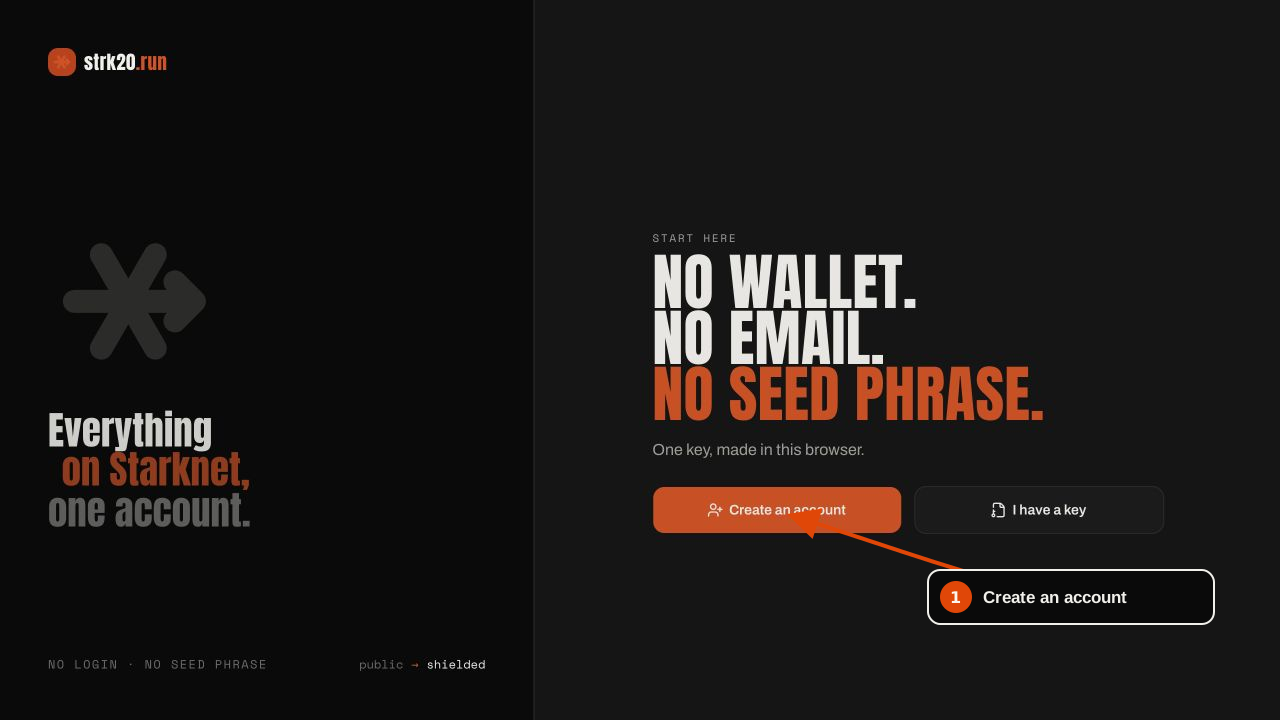
Open the app and press Create an account. Use I have a key only when restoring from an existing Recovery File.
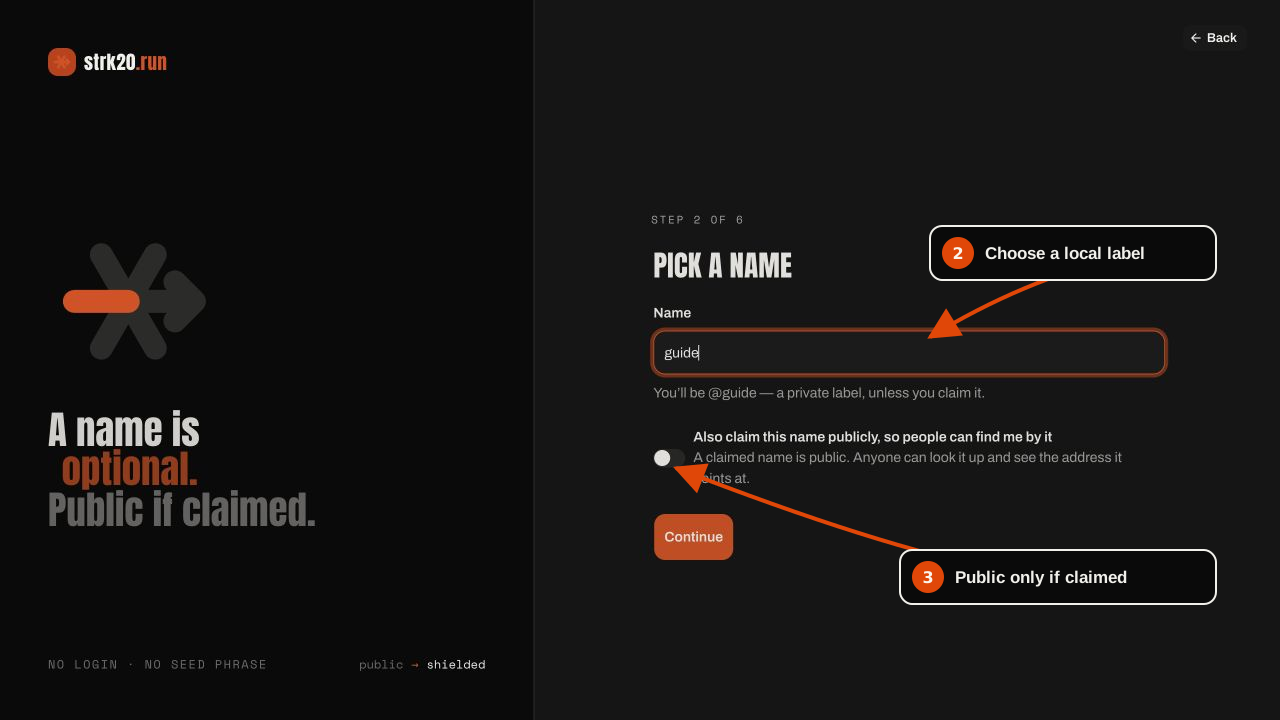
Choose a label, then decide whether to publish it
The label is how this browser names the account. Leave the public-claim switch off if it should
stay local. Turning it on asks the registration flow to publish name → address in the directory,
where anyone can look it up.
Protect the key before generating it
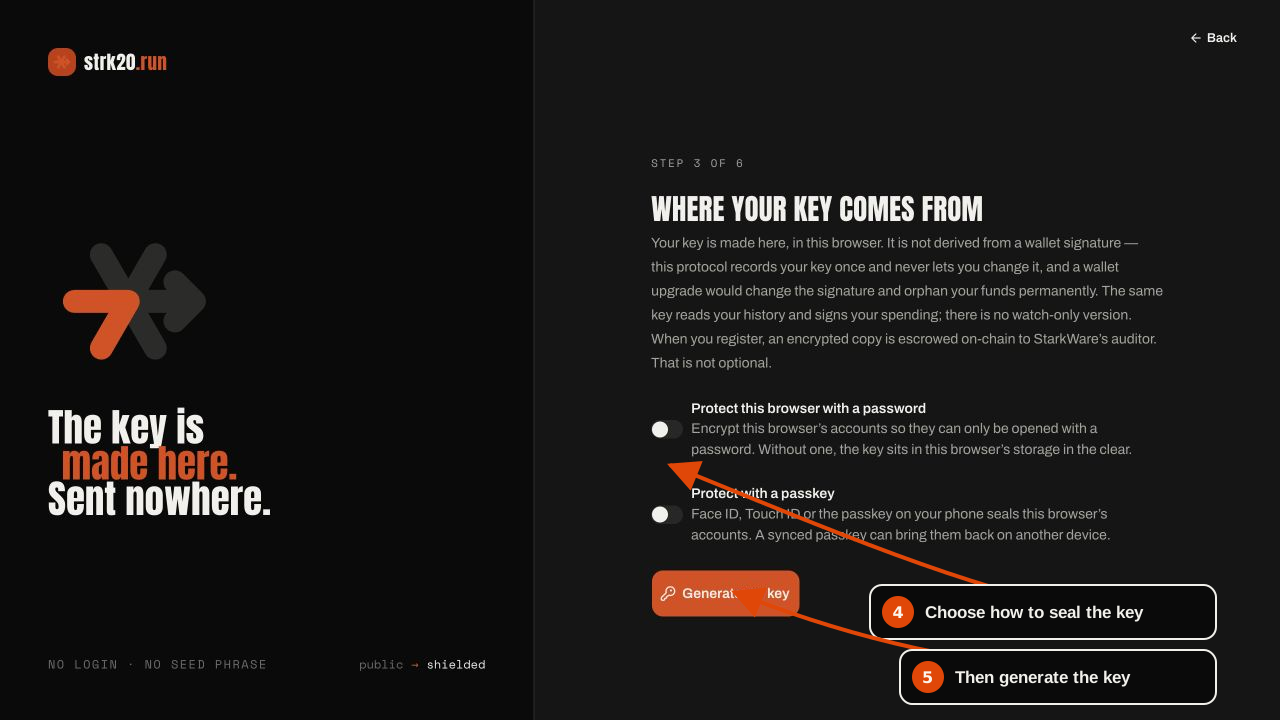
Choose a password, a passkey, both, or neither. A password or passkey seals the account record in an encrypted vault. Choosing neither leaves the key in browser storage in plaintext. Press Generate my key only after that choice is deliberate. Passkey setup asks twice—once to create the credential, then once to obtain the local PRF result used to wrap the vault key. See the Passkey guide before relying on another-device restore.
Save recovery, away from the code
Create the Recovery File, write down the Recovery Code somewhere else, type the code back, then download and verify the file. The documentation intentionally does not show this screen after a code is issued: a real recovery credential should never be published in a guide.
Registration writes a key that cannot be replaced. Do not continue without a verified Recovery File and its separate code.
Put the account on-chain and register
The app shows the current setup ladder: funding if needed, account deployment, pool registration, confirmation and any available starter offer. Sponsorship is a live service with a budget; when it is unavailable, the same screen shows the public address to fund with STRK from a wallet or exchange.
Next: fund the account and send.