Protect and restore with Passkey
Add Passkey protection, check backup and sync state, unlock locally, and restore the same accounts in a fresh compatible browser.
Passkey can seal the same account collection as a password and, when the provider backs it up, restore that collection in another compatible browser. It does not create the Stark account key and it is not a replacement for each account's Recovery File.
Know which kind of passkey you made
Settings must say Passkey · synced by your passkey provider before you rely on another-device restore. Passkey · this device only stays on that device. Keep the Recovery File and its separate code either way.
Choose Passkey before generating a new account
On Create an account, continue to Where your key comes from and turn on Protect with a passkey. Password and Passkey are independent switches: use either or both. Read the synced-device sentence before pressing Generate my key.
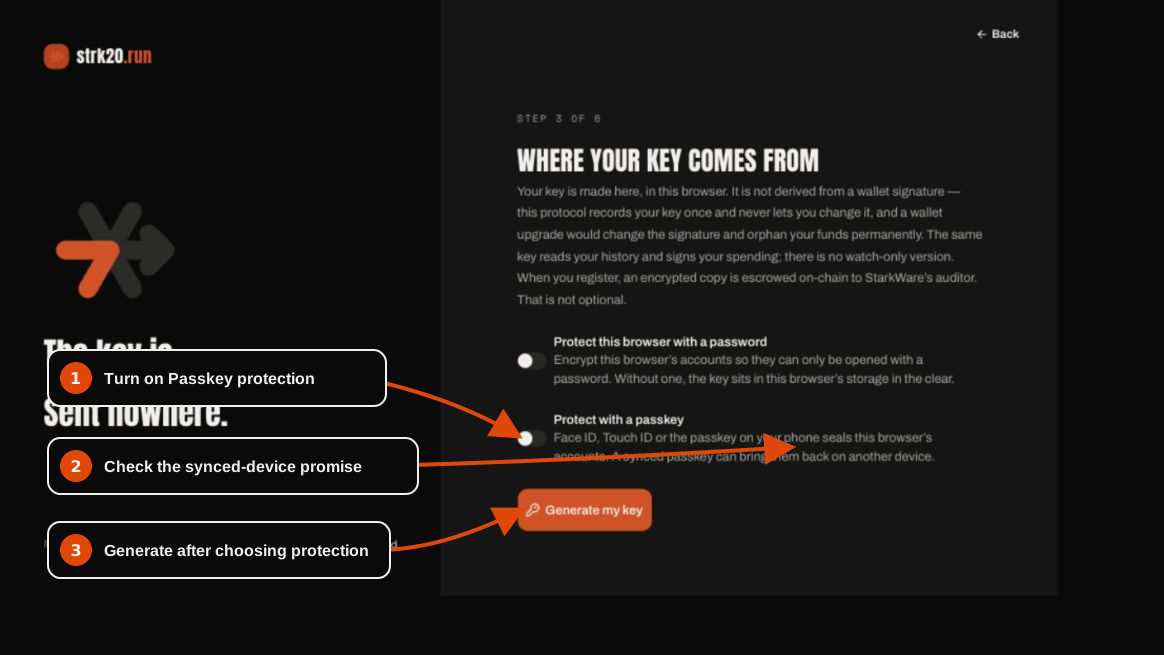
Finish both Passkey prompts
The first prompt creates the discoverable credential. The second prompt approves an assertion so the browser can obtain the local PRF result and wrap the vault key. Closing either prompt leaves a clear refusal or retry state; do not keep clicking while the system prompt is open.
After the second approval, setup writes and reads back the protected vault before clearing what it replaces. A remote upload problem appears later as behind; it does not mean the local account was left half-protected.
Check the operational state in Settings
Open Settings → Security → Passkey. Verify both labels:
- Passkey · synced by your passkey provider or Passkey · this device only describes whether another-device recovery is possible.
- Sealed copy synced or Sealed copy behind describes whether the recovery service has the current encrypted account collection.
If it says behind, press Sync now and approve the passkey once. Adding Passkey later to a password-only vault first asks for the current password once, then uses the same two WebAuthn prompts described above.
Unlock this browser
Use Unlock with passkey on the lock screen. This opens the vault already stored in this browser. If both wrappers exist, the password remains an alternate unlock path. A temporary recovery-service outage need not block local unlock because the browser can verify the result by opening its own authenticated ciphertext.
Restore in a genuinely fresh browser
Open the app in the new compatible browser and choose I have a key → Passkey → Restore with passkey. Select the same synced passkey when the provider asks. Do this only in an empty browser; the app refuses to replace an account store that is already present.
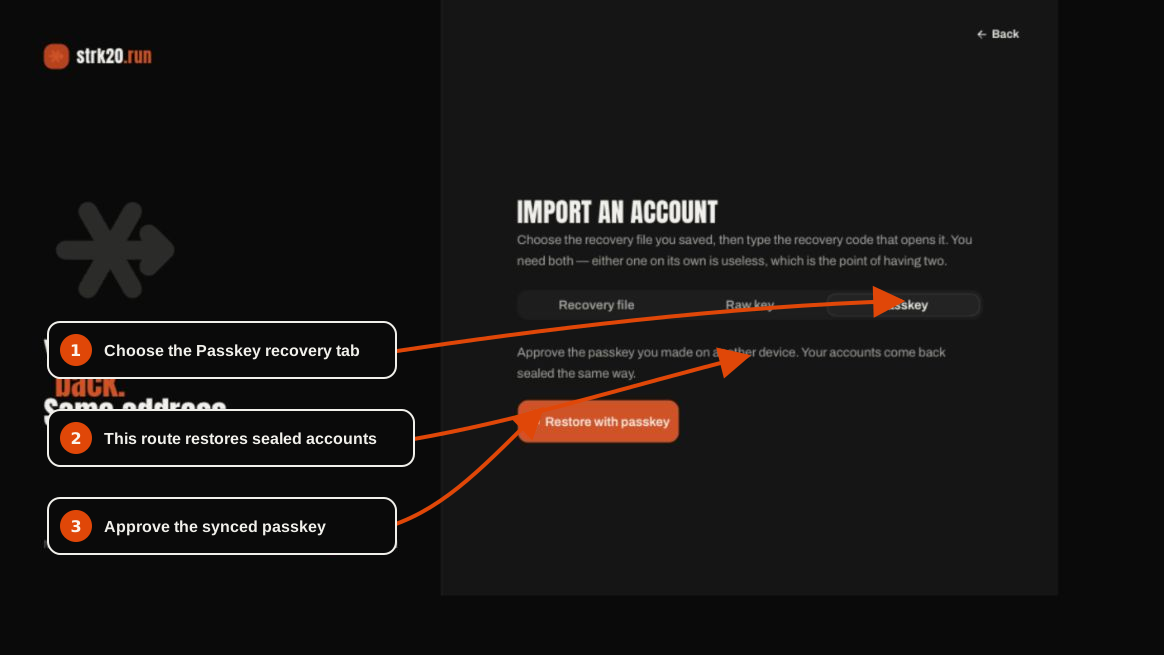
Verify what returned
Confirm the expected account address and labels. The restored browser now has the same account collection and Passkey wrappers. It does not inherit the old browser's bearer-position secrets, claim records, bet/activity history or Chat log. Restore those through their own documented route where one exists; do not treat an empty history view as proof that an open position disappeared.
Remove Passkey deliberately
Use Settings → Security → Passkey → Remove, read the confirmation, and approve the passkey. The remote sealed copy is deleted first. A remaining password continues to protect the local vault; no remaining wrapper means the account record returns to unprotected browser storage.
Read how Passkey works for the VEK/KEK architecture, recovery-service data boundary, cross-browser conditions and conflict-merge behavior.